








Your First Ethereum Classic Node, Part 1: Build core-geth from Source
Running a node is one of the most significant ways anyone can contribute to Ethereum Classic. Every node keeps its own copy of the blockchain, a record of every block, transaction and smart contract. More nodes make ETC more decentralized and the network more resilient, plus it lets you interact with the network without relying on a trusted third party. It's also easier to set up than you might think, and this guide will show you how, step-by-step.
By the end of this guide, you'll be running your very own node: a copy of the ETC blockchain on your own hardware that you can talk to directly. You need little to no experience, and if you get stuck at any point, ask in r/EthereumClassic. The community is always happy to help.
core-geth is the most popular Ethereum Classic client, used by about 90% of the network, and setting it up is pretty straightforward.
This is part 1 of a three-part series. In this part, you'll build core-geth from its source code, start your node, and talk to it.
Choose your path
| Path | Version | Choose it if | Follow |
|---|---|---|---|
| A. Build the stable release (recommended) | v1.12.23 "Argos", the latest stable release as of writing. Check the releases page for anything newer | You want a stable node and to see how it's made | Steps 1–8, Go 1.22.12 in step 2, option A in step 3 |
| B. Build the development version | v1.12.24-unstable, the latest code on core-geth's master branch, including the newer Go toolchain from pull request #702 | You want to help test upcoming changes before they're released | Steps 1–8, Go 1.27.2 in step 2, option B in step 3 |
For this guide, we'll use the development version on master as a preview of what's coming, but you can go with option A (v1.12.23 "Argos") and follow the same steps. Paths A and B are identical except for two choices: the Go version in step 2 and the core-geth version in step 3. If you're not sure what to choose, choose the stable v1.12.23 Argos release, unless a newer stable version has been released.
Not covered here: waiting for a full sync, mining, running the node as a background service, or opening it up to the internet. See Next steps. This is just a basic guide to setting up a core-geth node.
Before you start
You need:
- A Linux machine running Ubuntu or Debian. This guide was recorded on a cloud Linux machine over SSH, but a virtual machine (VM) or a spare computer at home works the same way.
- An account that can run
sudo(admin) commands. - A terminal, and about 30 minutes.
Hardware
Recommended hardware for running core-geth with a snap sync on ETC mainnet, as of October 2026:
| Recommended | Notes | |
|---|---|---|
| CPU | 4+ cores | A synced node uses less than one core |
| RAM | 16 GB+ | The client itself uses about 4 GB once synced. The extra covers the memory spike during the initial sync. Less can work with swap, but the sync is slower |
| Disk | 500 GB SSD or NVMe | A synced node uses about 85–100 GB today (chain data plus ethash caches). The rest leaves room for the chain to grow. Avoid spinning hard drives |
| Internet | 25+ Mbit/s download | Slower connections work, but the initial sync takes longer |
ETC's chain is much smaller than Ethereum's, so these numbers are well below go-ethereum's hardware requirements for Ethereum mainnet, which call for 2 TB or more of disk.
Step 1: Install the basic tools
We're going to build core-geth from its source code, so you need a few standard tools first:
- git downloads the code.
- build-essential provides
makeand a compiler, which turn code into a program. - curl and wget download files.
Run these from any folder:
sudo apt update
What you'll see: a list of lines starting with Hit: or Get:, ending with something like:
Reading package lists... Done
What it means: your machine has fetched the latest list of software it can install.
sudo apt install -y git build-essential curl wget
What you'll see: a lot of text scroll past for a minute or two, then your prompt returns. If the tools were already installed, you'll see is already the newest version instead. Both are fine.
Check that each tool is installed:
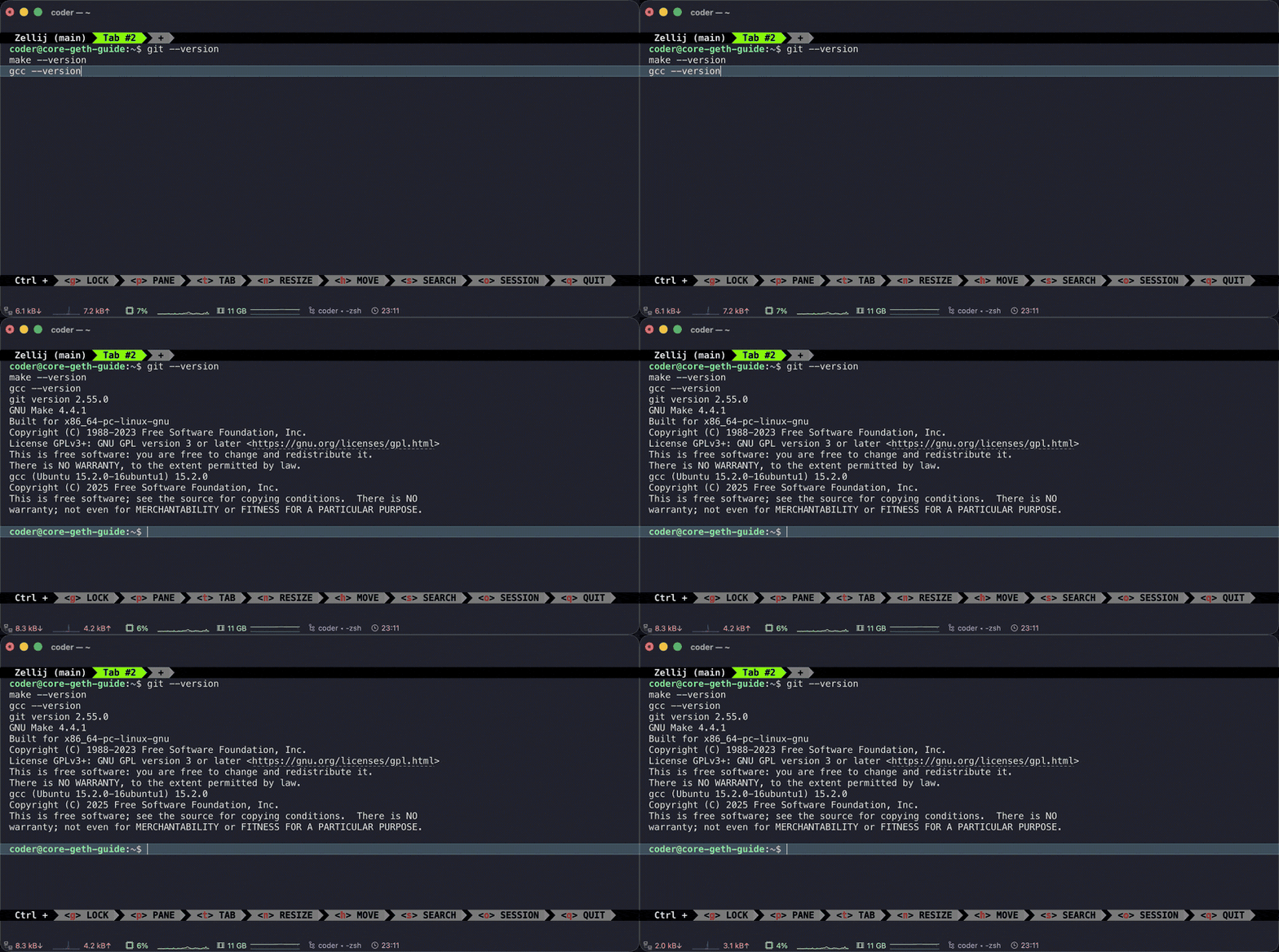
git --version
make --version
gcc --version
What you'll see: a version line for each, such as:
git version 2.43.0
GNU Make 4.3
gcc (Ubuntu 13.2.0-23ubuntu4) 13.2.0
Your numbers may differ.
What it means: all three tools are ready. If one says command not found, run the install command again.
Step 2: Install Go
core-geth is written in the Go programming language, so you need Go installed to build it. As of writing, each path needs a different version of Go:
| Path | Go version |
|---|---|
| A. v1.12.23 "Argos" | Go 1.22.12 |
B. development version (master) | Go 1.27.2 |
| Versions later than v1.12.23 | Check the release notes |
The commands below show path B (Go 1.27.2). On path A, replace 1.27.2 with 1.22.12 in every command in this step.
Why two different Go versions?
core-geth v1.12.23 was built for Go 1.22, and it doesn't build with newer versions of Go: two of the libraries it uses stopped working with changes made in Go 1.23 and Go 1.24. Go 1.22.12 is the last Go 1.22 release, and it builds v1.12.23 cleanly. Go 1.22 no longer gets security fixes from the Go team, but you only use it to build core-geth, not to run anything else.
The development code in path B fixes this. Pull request #702, now merged into master, updated core-geth's Go setup to match go-ethereum's v1.17.5 release. It needs Go 1.24 or newer, and this guide was tested with Go 1.27.2, the latest stable version of Go as of writing.
In the pull request's benchmarks, moving from Go 1.21 to Go 1.25 made core-geth's EVM (the part that runs transactions and smart contracts) about 4% faster, with about 11% less memory allocated and about 8% fewer allocations.
Skip sudo apt install golang here: Ubuntu's version may be older than the one this guide uses, so we'll install Go from the official Go website instead.
First, check which version to download. Go comes in different versions for different processors, and the wrong one won't work:
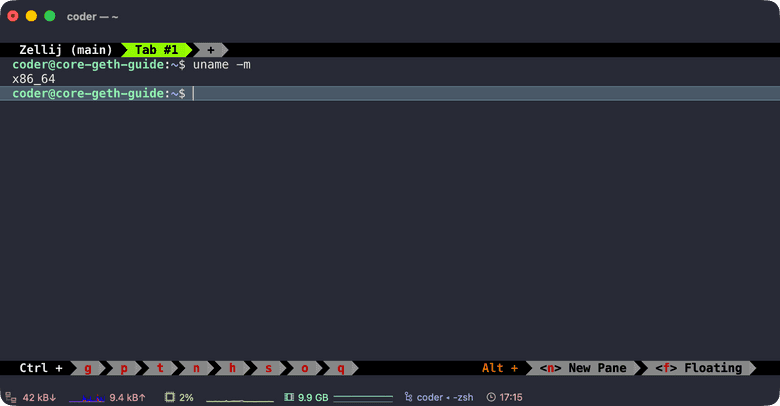
uname -m
What you'll see: x86_64 on most PCs and cloud servers. Use the commands below as written. If you see aarch64 (an ARM processor, used by some cloud servers), replace amd64 with arm64 in every command in this step. The SHA256 for the ARM download is different, so look it up on go.dev/dl.
Download it. First go to your home folder, then download:
cd ~
wget https://go.dev/dl/go1.27.2.linux-amd64.tar.gz
What you'll see: a progress bar, ending with a line like:
'go1.27.2.linux-amd64.tar.gz' saved
What it means: the Go download is now a file in your home folder.
Check that the download is genuine:
sha256sum go1.27.2.linux-amd64.tar.gz
What you'll see: a long string of letters and numbers, then the file name:
ecbadb99091a3f46e31f5f934b068b1864eafa7995211b39eaddf76996045fe5 go1.27.2.linux-amd64.tar.gz
What it means: that string is the file's fingerprint. It should exactly match the one for your download:
4fa4f869b0f7fc6bb1eb2660e74657fbf04cdd290b5aef905585c86051b34d43  go1.22.12.linux-amd64.tar.gz
ecbadb99091a3f46e31f5f934b068b1864eafa7995211b39eaddf76996045fe5  go1.27.2.linux-amd64.tar.gz
You can also find the file on go.dev/dl and compare it with the SHA256 listed there. If they don't match, the file is damaged or not genuine: delete it with rm go1.27.2.linux-amd64.tar.gz and download it again.
Install it:
sudo rm -rf /usr/local/go
sudo tar -C /usr/local -xzf go1.27.2.linux-amd64.tar.gz
What you'll see: nothing. Neither command prints anything when it works. The first deletes any Go previously installed in /usr/local/go, because unpacking a new version on top of an old one leaves old files behind and breaks it. If you've never installed Go there, it does nothing. The second unpacks Go into /usr/local/go, the standard place for it.
Tell your terminal where Go is:
echo 'export PATH=$PATH:/usr/local/go/bin' >> ~/.bashrc
source ~/.bashrc
What you'll see: nothing again. These add Go to the list of places your terminal looks for programs, now and every time you open a terminal.
Check it worked:
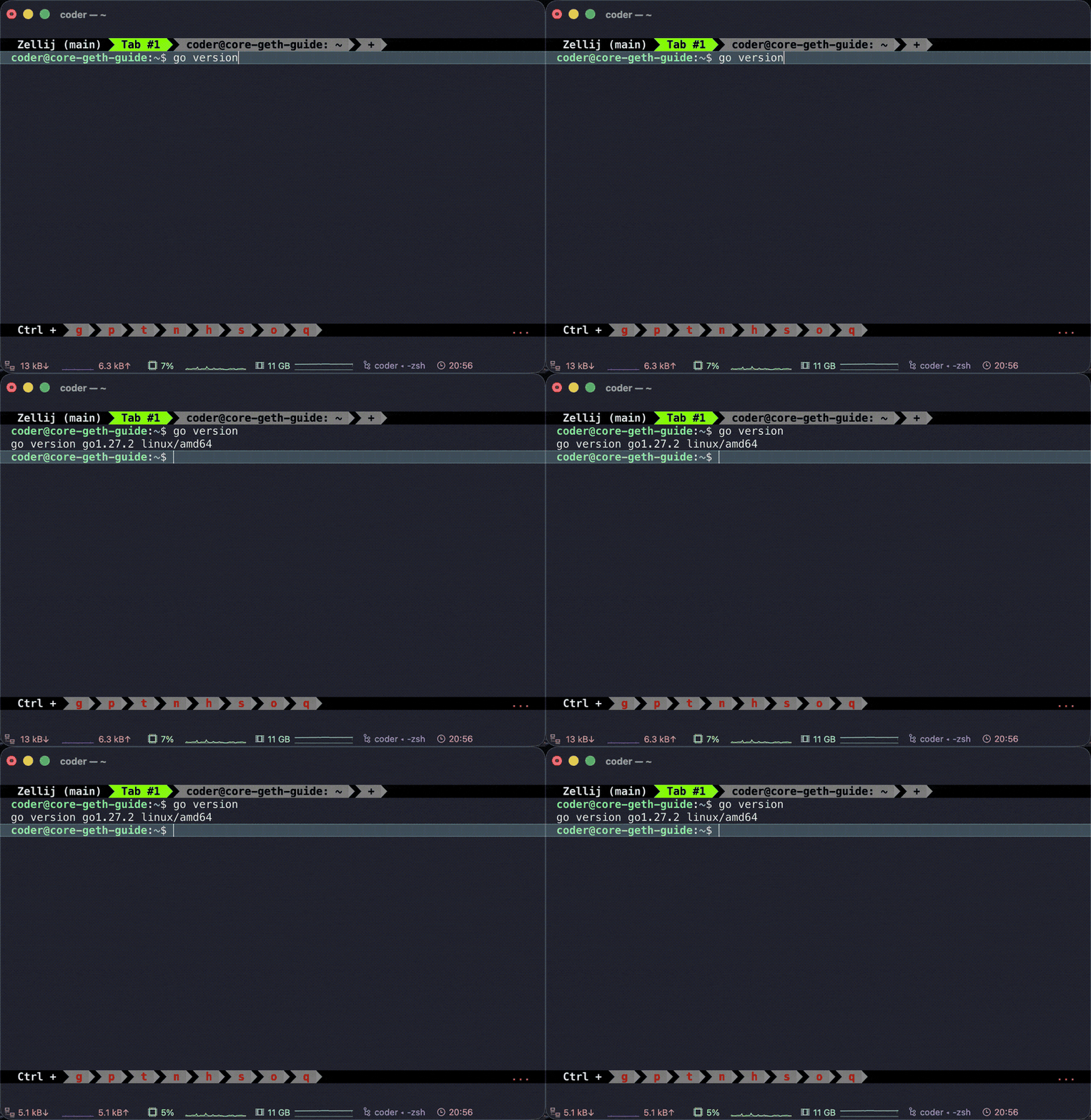
go version
What you'll see:
go version go1.27.2 linux/amd64
What it means: Go is installed and ready. On path A, you'll see go1.22.12 instead. If you see command not found, open a new terminal and try again.
Step 3: Get the core-geth code
core-geth is maintained at github.com/etclabscore/core-geth. From your home folder, download the code:
cd ~
git clone https://github.com/etclabscore/core-geth.git
What you'll see:
Cloning into 'core-geth'...
remote: Enumerating objects: ...
Receiving objects: 100% (...), done.
Resolving deltas: 100% (...), done.
What it means: a full copy of the code is now in a folder called core-geth inside your home folder. Move into it:
cd core-geth
Your prompt now ends in ~/core-geth$. Stay in this folder until step 5.
The code you just downloaded holds every version of core-geth. Now pick the one for your path.
Option A: v1.12.23 "Argos" (stable)
git checkout v1.12.23
What you'll see: a note that starts:
Note: switching to 'v1.12.23'.

You are in 'detached HEAD' state.
followed by a few lines of advice, ending with a line that starts HEAD is now at 96b2afc.
What it means: you've switched to the exact code of the v1.12.23 release. "Detached HEAD" might sound alarming, but it just means you're looking at a fixed version rather than one that's still being changed.
This release is signed by core-geth's maintainer, Diego López León. On its GitHub release page it's marked Verified.
Option B: v1.12.24-unstable (development version)
As of writing, v1.12.24 isn't released yet. Its code is on the master branch, where core-geth's maintainers add changes once they've been reviewed. That includes pull request #702, which brings core-geth's Go toolchain in line with go-ethereum v1.17.5. We'll use it here as a preview of what's coming. git clone already put you on master, so this command just makes sure:
git checkout master
What you'll see:
Already on 'master'
Your branch is up to date with 'origin/master'.
What it means: you're on the development code. Once v1.12.24 is officially released, use git checkout v1.12.24 instead.
New changes are added to master regularly, so if you run this later, the code you get may be newer than the version shown in this guide.
Check which version you're on (both paths)
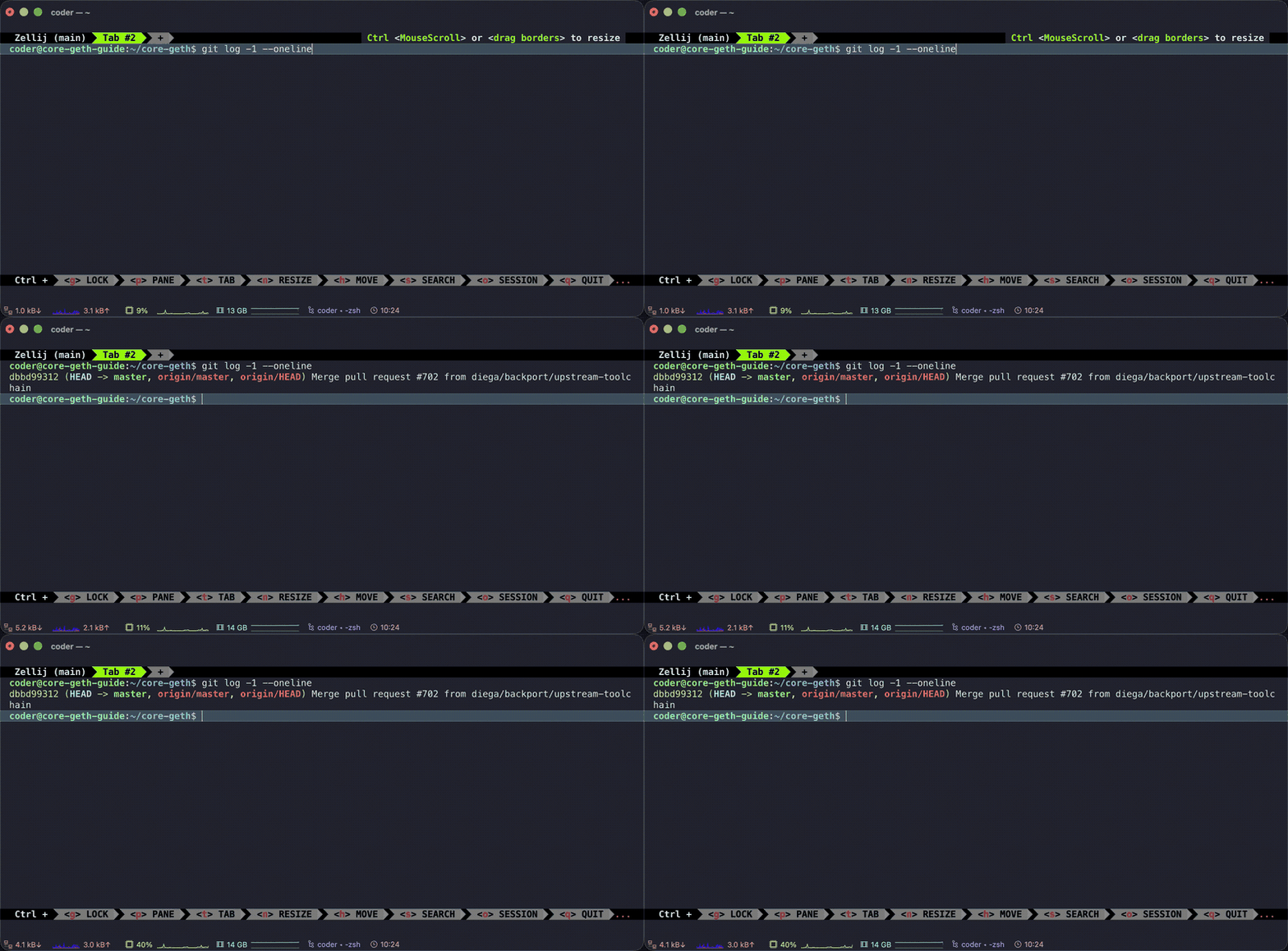
git log -1 --oneline
What you'll see: one line: a short code, then a description of the latest change. On path B, as of writing:
dbbd99312 (HEAD -> master, origin/master, origin/HEAD) Merge pull request #702 from diega/backport/upstream-toolchain
On path A, the code starts with 96b2afc.
What it means: this is your fingerprint for the code you're about to build. Note the short code: you'll check it again in step 5.
Step 4: Build core-geth
Check that your prompt ends in ~/core-geth$. If not, run cd ~/core-geth first. Then:
make geth
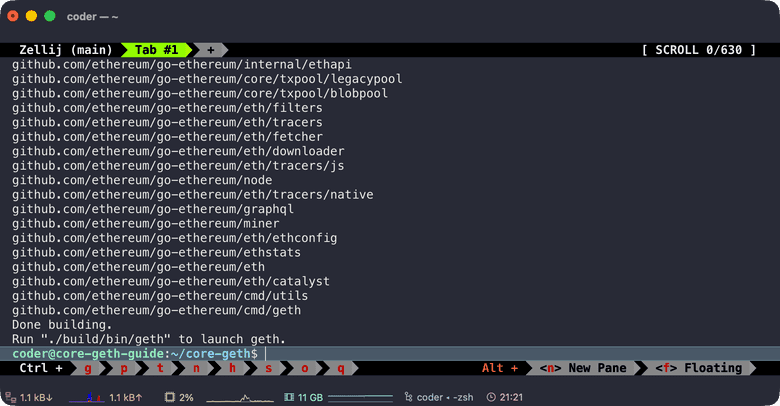
What you'll see: a lot of text scroll past for a few minutes. That's Go downloading what core-geth needs and compiling it. It should end with lines like:
Done building.
Run "./build/bin/geth" to launch geth.
What it means: core-geth is built. The program is a file called geth, inside the build/bin folder within core-geth.
Step 5: Check what you built
Still in ~/core-geth:
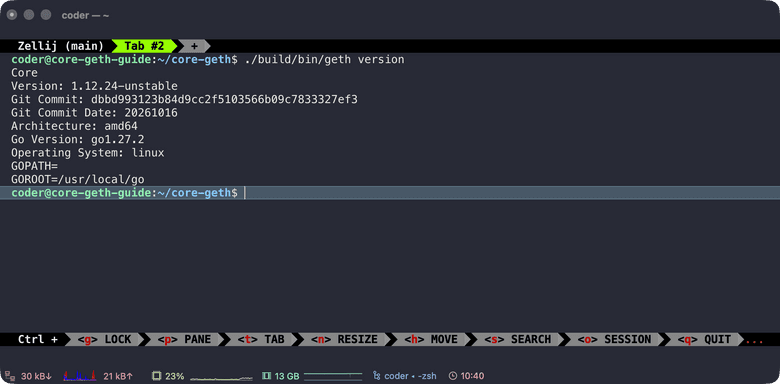
./build/bin/geth version
The ./ at the start means "the program in this folder", so this only works from inside core-geth.
What you'll see: something like this (path B shown; on path A there's no Git Commit Date line):
Core
Version: 1.12.24-unstable
Git Commit: dbbd993123b84d9cc2f5103566b09c7833327ef3
Git Commit Date: 20261016
Architecture: amd64
Go Version: go1.27.2
Operating System: linux
GOPATH=
GOROOT=/usr/local/go
What it means: check three lines.
- Version:
1.12.23-stableon path A. On path B it's1.12.24-unstable, where "unstable" means it's development code that hasn't been released yet. - Git Commit: starts with the same short code
git log -1 --onelineshowed in step 3. - Go Version:
go1.22.12on path A,go1.27.2on path B.
If all three match, nice work: you've just built core-geth from source!
Optional: run it as just geth
Typing ./build/bin/geth every time, and only from this folder, can get annoying. To type just geth from any folder, copy the program to where Linux keeps programs you install yourself:
sudo cp ./build/bin/geth /usr/local/bin/
What you'll see: nothing. Then check that your terminal finds it:
which geth
What you'll see:
/usr/local/bin/geth
What it means: typing geth now runs the version you just built, from any folder. If you've ever installed another geth, this also confirms you're running the right one.
If you rebuild later, run the copy command again. The rest of this guide uses plain geth. If you skipped this step, type ./build/bin/geth wherever you see geth, from inside the ~/core-geth folder.
Step 6: Start your node
From here on you'll use two terminals:
- Terminal A runs the node. Once it's started, you leave it alone.
- Terminal B is where you talk to the node (step 7).
In terminal A, from any folder:
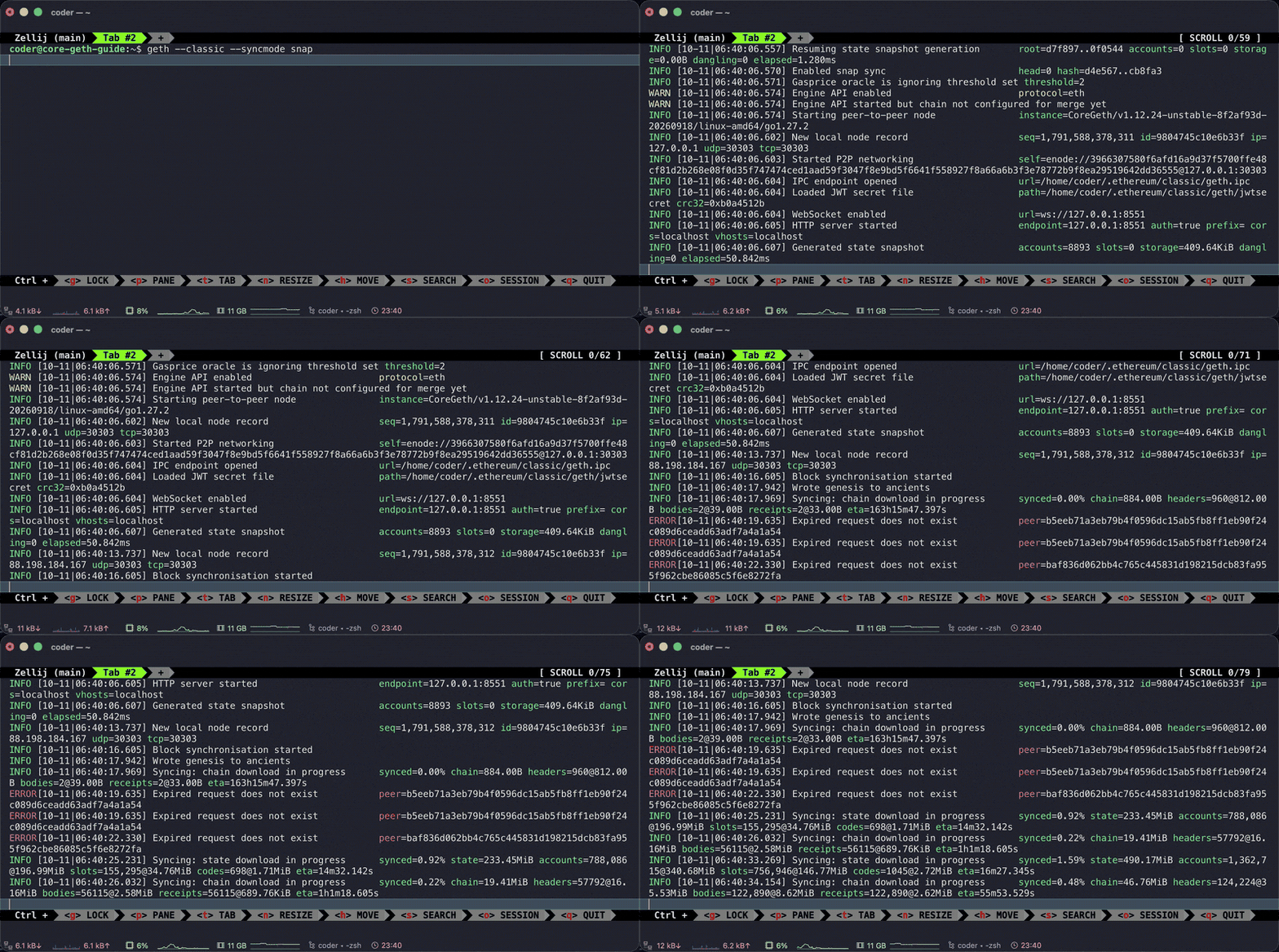
geth --classic --syncmode snap
--classicjoins Ethereum Classic. Leave it out and geth joins a different network, so always include it.--syncmode snapchooses the fastest way to catch up with the chain (see Sync modes below).
What you'll see: lines of text start scrolling right away and keep going. Each line looks something like this:
INFO [10-08|22:31:05.123] Starting peer-to-peer node ...
INFOis the kind of message. Most areINFO. A fewWARNlines in the first minutes are normal. During a snap sync you'll also see someERRORlines such asPending request exists for joining peerorExpired request does not exist. These are harmless as long as the node keeps syncing.- The date and time, then what the node is doing.
In the first minute or two, the messages show the node starting up, finding peers, and beginning to sync.
What it means: your node is running and joining the network. The scrolling never stops while the node runs, and your prompt won't come back. That's how it should be. Leave terminal A open and move to terminal B.
Sync modes
Syncing just means downloading the chain and checking it. You choose how with --syncmode:
| Mode | What it does | Use it when |
|---|---|---|
snap | Downloads the blocks plus a recent snapshot of the chain's current state | You want a working node fastest. Recommended for this guide |
full | Downloads every block from the start and re-runs every transaction | You want to verify the whole history yourself. Much slower |
An archive node, which keeps every historical state, uses --syncmode full --gcmode archive and needs far more disk space.
To see the modes your build supports, and which one it uses if you don't choose:
geth --help | grep -A3 syncmode
Store the chain somewhere else
By default, your node keeps the chain in ~/.ethereum/classic. To store it somewhere else, such as a bigger drive, add --datadir and the folder you want:
geth --classic --syncmode snap --datadir /mnt/etc-node
Replace /mnt/etc-node with a folder on your drive that your account can write to. geth uses that folder exactly as you give it, without adding classic on the end.
- Use the same
--datadirevery time you start the node. If you leave it out, geth goes back to~/.ethereum/classicand starts syncing again from the beginning there. - Add it when you attach, too, so the console can find your node:
geth --classic --datadir /mnt/etc-node attach
You don't need a full sync for this guide. A few minutes of syncing is enough to see everything working.
Step 7: Talk to your node with the console
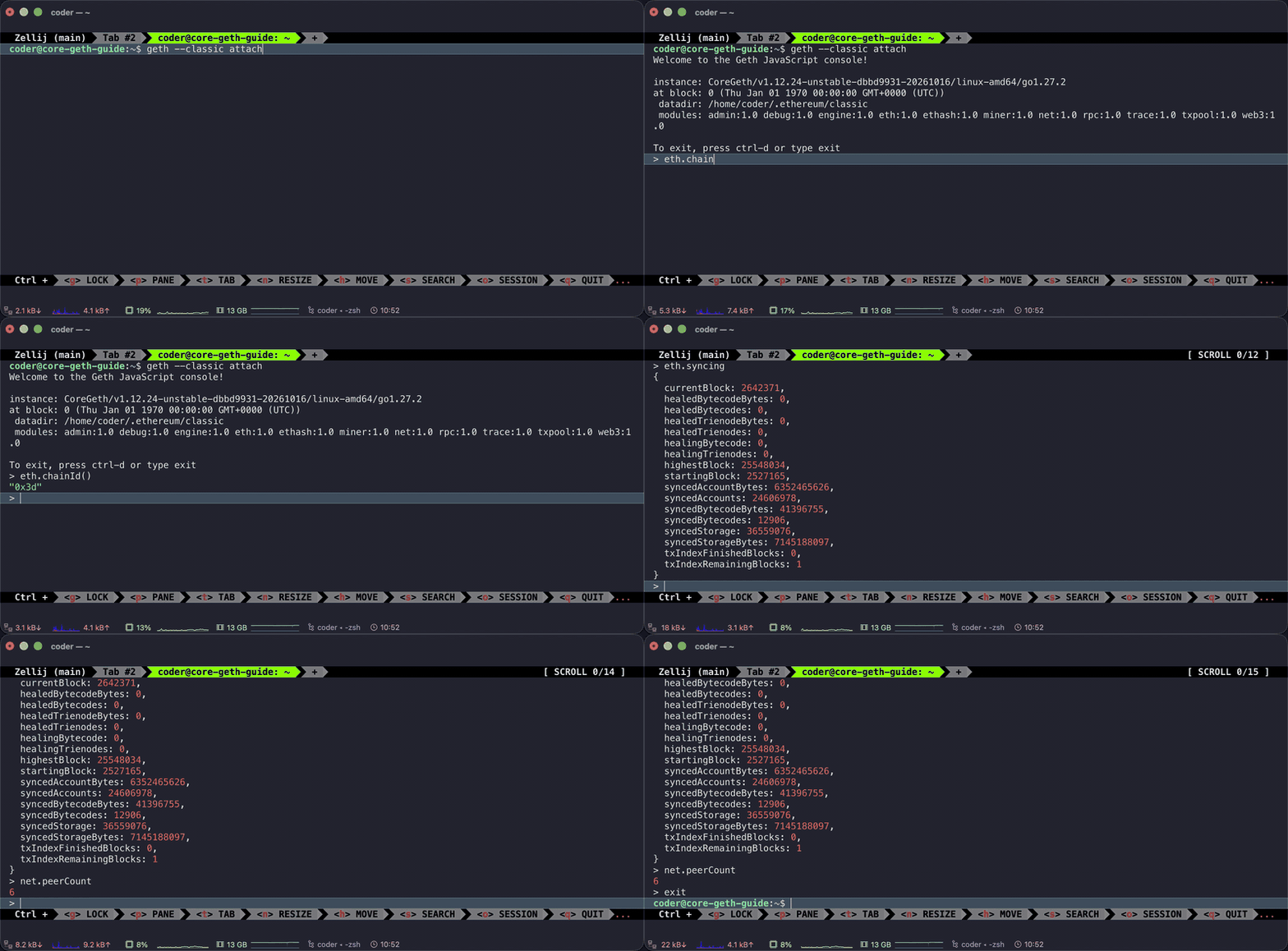
The console lets you ask your node questions and interact with it directly, with no website, app, or trusted third party in between. It connects through a private file on your machine (geth.ipc), so only you can use it.
Open terminal B: a second terminal window on the same machine, connected the same way as the first. Wait until terminal A has been running for about a minute, then in terminal B, from any folder:
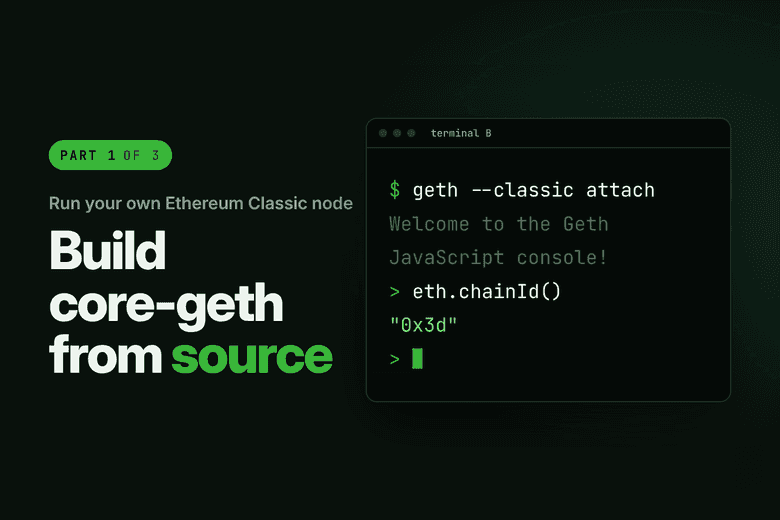
geth --classic attach
What you'll see: something like:
Welcome to the Geth JavaScript console!

instance: CoreGeth/v1.12.24-unstable-dbbd9931-20261016/linux-amd64/go1.27.2
...
To exit, press ctrl-d or type exit
>
What it means: you're connected to your node. The > is the console's prompt. From here, commands go to your node, not to Linux, until you type exit.
Type each of these after the > and press Enter.
1. Confirm you're on Ethereum Classic:
eth.chainId()
What you'll see: "0x3d"
What it means: 0x3d is 61 written in hexadecimal, and 61 is ETC's chain ID. If you see "0x1", you're on Ethereum instead: type exit, stop the node in terminal A with Ctrl+C, and start it again with --classic.
2. Check you're connected:
net.peerCount
What you'll see: a number, such as 7.
What it means: how many peers you're connected to. Anything above 0 means you're connected. Congrats, you're officially part of the network! If it's 0, wait a minute and try again.
3. Check sync progress:
eth.syncing
What you'll see: a block of details, including currentBlock and highestBlock.
What it means: highestBlock is the newest block on the network and currentBlock is how far your node has got. Once your node has caught up, this shows false instead.
4. Check your latest block:
eth.blockNumber
What you'll see: a number. During a snap sync, that number is often 0.
What it means: 0 is normal at this stage. Snap sync downloads in a different order, and this number jumps up near the end.
More useful commands
| Command | What it tells you |
|---|---|
web3.version.node | Exactly which software is running, such as CoreGeth/v1.12.23-stable/… |
admin.datadir | The folder your node stores its data in |
eth.getBlock(0).hash | The ID of the genesis block, the very first block. ETC and Ethereum share it, because they share history up to the 2016 split |
eth.getBlock("latest") | The newest block your node has |
txpool.status | How many transactions are waiting to go into a block |
admin.nodeInfo.name | Your node's client name |
Keep your IP address private: admin.nodeInfo on its own shows your IP address and your node's unique network ID, so keep its output out of posts and screenshots. admin.peers lists other nodes' IP addresses. Many of these are already public on node explorers, but it's good manners not to post them.
Console tips
- Type
eth.and press Tab twice to list everything available. It works fornet.andadmin.too. - No brackets means you're reading a value (
eth.syncing). Brackets mean you're running a function (eth.chainId()). If you seefunction(…)instead of a result, add the brackets. - Type
exitor press Ctrl+D to leave. Your node keeps running in terminal A.
To run a single command without opening the console, from terminal B:
geth --classic attach --exec "eth.blockNumber"
Step 8: Stop the node safely
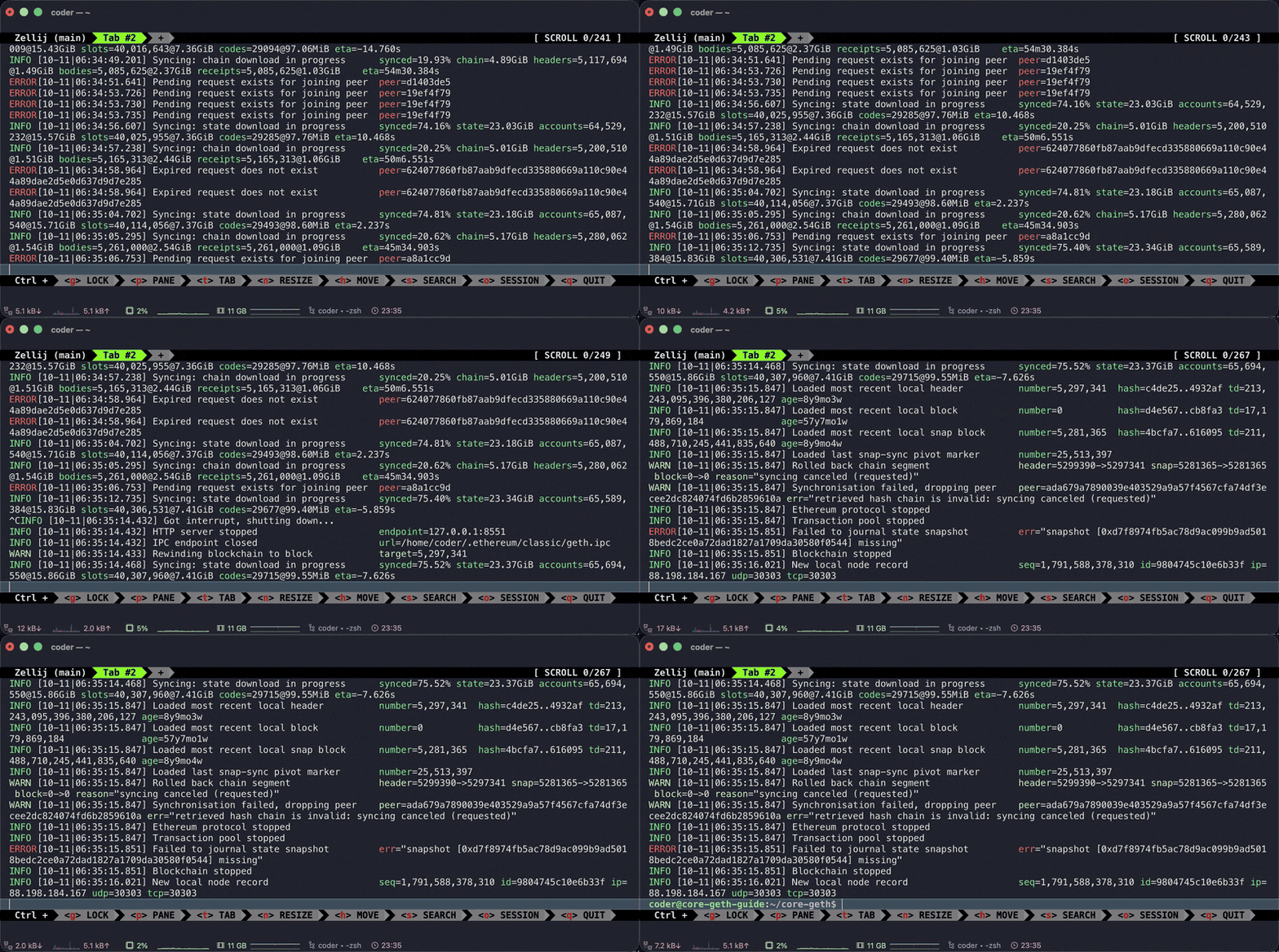
In terminal B, type exit to leave the console. Then go to terminal A and press Ctrl+C once.
What you'll see: a line like Got interrupt, shutting down..., then a few more lines as the node saves its work, and finally your prompt comes back.
What it means: the node has stopped cleanly. Give it a minute or so to finish: closing the window or pressing Ctrl+C again while it's shutting down can damage the data it has downloaded.
Congratulations! You've officially built core-geth from source, connected to the network, and talked to your own node. To start it again later, just repeat step 6.
Once your node is fully synced, you can query the blockchain directly, build your own block explorer, monitor the network, and create and deploy smart contracts and dapps, all without relying on any trusted third party.
Troubleshooting
Find the message you're seeing, then follow the fix. Still stuck? Ask in r/EthereumClassic, and include the command you ran and the message you saw.
command not found after installing a tool or Go. Run the install command again. For Go, run source ~/.bashrc or open a new terminal so it picks up the new location.
You are in 'detached HEAD' state after git checkout v1.12.23. Nothing is wrong. It means you're on a fixed release, which is what you want. Carry on to step 4.
No such file or directory when running ./build/bin/geth. You're not in the core-geth folder. Run cd ~/core-geth and try again.
Unable to attach to remote geth … no such file or directory. The console can't find your running node. Check that:
- the node is still running in terminal A. Running
pgrep -a gethin terminal B should list it - you started it with
--classicand you're attaching withgeth --classic attach - you waited a minute after starting: the connection file only appears once the node has finished starting up
- you didn't start the node with
sudo. That puts its files under/root/. Stop it and start it again withoutsudo - if you started the node with
--datadir, you're attaching with the same--datadir
Still stuck? Scroll to the top of terminal A and find the line containing IPC endpoint opened. Attach to the path it shows: geth attach /that/path/geth.ipc.
The console prints function(…) instead of a result. You typed a function name without brackets. Add (), or check the spelling against this guide.
eth.blockNumber stays at 0. Normal during a snap sync. Check eth.syncing for progress instead.
eth.chainId() shows "0x1". You're on Ethereum, not Ethereum Classic. Stop the node and restart it with --classic.
address already in use or datadir already used by another process when starting the node. Another node is already running. Stop it first.
Next steps
- Finish a full sync: leave the node running until
eth.syncingshowsfalse. Check you have the disk space listed under Hardware first. - Verify every block yourself: start a fresh node with
--syncmode full. Expect it to take much longer. - Run it in the background so it keeps going after you close the terminal, for example as a systemd service.
- Update to v1.12.24 when it's released: check out
v1.12.24(step 3) and rebuild (step 4). Check its release notes for the Go version it needs. - Free up the space: to delete the downloaded chain, stop the node and run
geth --classic removedb. It asks before deleting anything. If you used--datadir, add the same--datadirto this command.


